
A link light does not mean the link is healthy. It means two ends agreed to talk, and nothing more. The error counters tell you how well the conversation is going, and most people never look at them.
I spent a good part of my career being handed a complaint like "the network is slow, but only for that one desk." Nine times in ten the answer was sitting in the interface counters on the switch port, already counted for me. Let me walk through how I read them.
Start with what the port negotiated
Before any counter, check speed and duplex. On a Cisco-style switch:
switch# show interfaces GigabitEthernet0/12
The first lines tell you the line state, and further down you will see something like Full-duplex, 100Mb/s. If that port feeds a gigabit device and says 100Mb/s, stop right there. Gigabit over copper uses all four pairs. A damaged pair, a bad punch-down, or a patch cord that someone wired with only two pairs will often let the link come up at 100 and look fine. Check the cable first.
On a Linux host, the same question looks like this:
ethtool eth0
Look at Speed, Duplex, Auto-negotiation and Link detected. Your interface name may differ (enp3s0, eno1), and what ethtool can report depends on the driver. I have seen virtual NICs that report nothing useful, so do not be alarmed by that.
Then read the counters
The switch output has a block that looks like this in spirit (exact wording differs by vendor and version):
  0 runts, 0 giants, 0 throttles
  214 input errors, 214 CRC, 0 frame, 0 overrun, 0 ignored
  0 output errors, 0 collisions, 0 late collision
On Linux:
ip -s link show eth0
ethtool -S eth0
The first gives you RX and TX errors and drops in a short table. The second dumps the driver's own counters. The names vary by driver, but crc and collision usually turn up in them somewhere. Use ethtool -S eth0 | grep -i -E 'crc|err|coll' to cut the noise.
Here is what each one usually means:
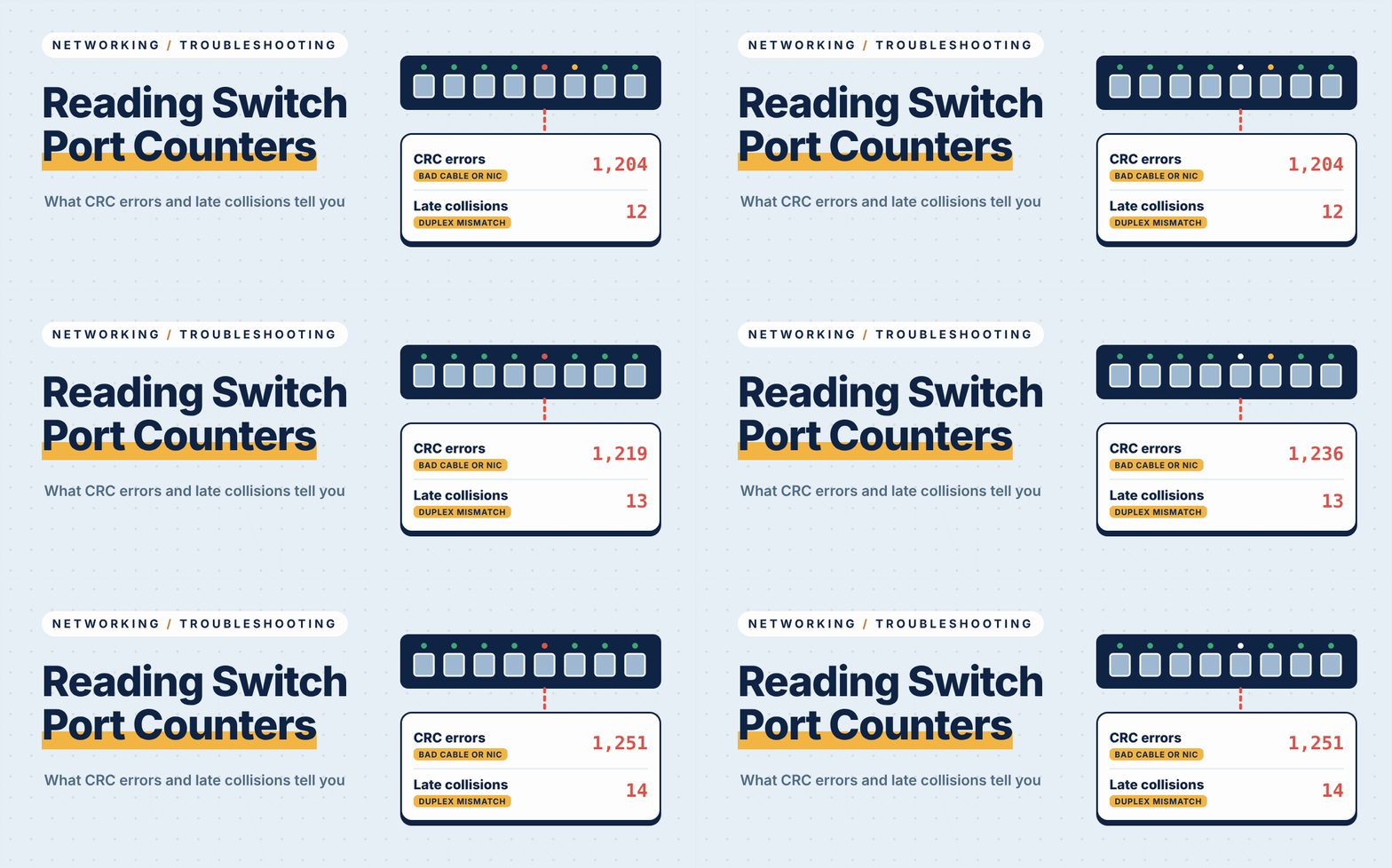
- CRC errors. The frame arrived, but the checksum did not match. Something damaged it in transit. This is a layer 1 counter more often than not: a bad cable, a poor termination, a patch cord bent past its limit, or a run laid alongside power cable. It can also be a failing port or NIC, but the cable is cheaper to test, so start there.
- Runts. Frames shorter than the minimum Ethernet size. They come from collisions and, in my experience, from duplex mismatches. They can also come from a faulty NIC.
- Giants. Frames larger than expected. Often a mismatch in MTU settings, such as a jumbo-frame device on a port that is not set for it. Not a cable problem.
- Collisions and late collisions. On a full-duplex link there should be none. If you see them, one end is running half-duplex. Late collisions in particular point to a duplex mismatch or an over-length cable run.
- Input drops, ignored, overruns. The port could not keep up. This is congestion or a busy device, not damage on the wire.
The duplex mismatch
This is the classic, and it is still around. One end is hard-set to 100 full, the other is left on auto. The auto end cannot see the other side's duplex setting, because a fixed port does not send negotiation information, so it falls back to half-duplex. Now one side thinks it can talk at any time, and the other waits its turn.
The result is odd. Pings work. Small things work. A large file copy crawls, because the two ends keep stepping on each other. It is like a two-lane road where one direction was told it is a single-lane road with a flagman, and nobody told the other direction.
The counters give it away, and they differ at each end:
- The half-duplex side shows collisions and late collisions.
- The full-duplex side shows CRC errors, runts and frame errors.
That split pattern, trouble on both ends but of different kinds, is the fingerprint. A bad cable usually shows CRC errors at both ends and no collisions.
The rule I follow: set both ends to auto, or set both ends to the same fixed value. Never mix. Gigabit and faster need auto-negotiation as part of the standard, so for those speeds I leave both ends on auto and fix the cable instead.
Counters are cumulative, so reset them
This is the mistake I see most. A port that shows 214 CRC errors might have collected them over three years, or in the last ten minutes. The number alone cannot say which.
- Clear the counters on the switch port:
clear counters GigabitEthernet0/12. - Write down the time. I put it in the binder.
- Reproduce the complaint, such as the slow copy, and run the show command again.
- If the numbers climb during the problem and sit still otherwise, you have a live fault. If they stay at zero, look elsewhere.
A handful of CRC errors right after someone plugs a cable in is normal. A count that grows steadily while the link is busy is not.
Fixing it, cheapest first
- Reseat both ends and swap the patch cord for one you know is good. Patch cords are the most abused part of any run.
- Check the punch-down at the jack and the patch panel, if the run is permanent.
- Test the run with a cable tester that reports wire map and length. A tester that only shows a light chasing along eight pins will miss a split pair, which passes continuity and still fails at speed.
- Move the device to another port. If the errors stay with the port, suspect the port. If they follow the device, suspect the device.
- Only then look at the duplex settings and the MTU.
A proper cable certifier costs real money and I do not own one at home. For a house or small office, a decent tester, patience and a spare patch cord get you most of the way. I will admit that for a run I suspect is marginal, I sometimes just pull a new cable. That is a cost in time and a ladder, but it is final.
If you want to practice asking a switch why it did something to a port, this lab covers a related case, where a switch shut a port down on its own:
You will find the dead port, ask the switch why, and fix the cause rather than just the symptom.
Your next step: pick the busiest port on your own switch, look at its counters today, and write the numbers down with the date. In a month, look again. That small habit is how you find a failing cable before someone files a ticket.
Dwayne
Have a question about this guide?
Create a free account to ask the community and join the discussion. Members who run the real thing answer every day.
0 comments
Open in the forumSign in to comment.